

Documentation » Connect a Webhook
Connect a Webhook
Use a webhook when the articles go somewhere that is not a WordPress site: your own CMS, a static site generator, a headless frontend, or a script that files them somewhere else. Add your own endpoint to Kafkai as a publishing destination, so that your AI agent can send the articles it writes to it.
A post goes up as a draft unless you ask for it to go live, so you can check it on your own site first.
Kafkai needs two things to publish to the endpoint:
- An address that accepts a
POSTwith a JSON body. - A username and password, when the endpoint requires a login. Kafkai sends them as HTTP Basic Auth.
Nothing else is required. Kafkai posts the article, and the endpoint answers with the ID of the post it created.
Before you begin
- The endpoint is reachable from the internet over HTTPS.
- The endpoint accepts
POSTwithContent-Type: application/json. - The endpoint answers with a JSON body that contains an
id. - You can add the destination in Kafkai yourself, or ask your agent to
do it with
kafkai_add_publishing_destination.
What the endpoint receives
Kafkai sends one POST per publish call. The minimum body is:
{
  "title": "How to build an AI strategy",
  "content": "<p>Rendered HTML</p>",
  "status": "draft"
}
status is draft or live. A publish call also carries language,
slug, categories, the Markdown as the agent wrote it, and the
article details, when the agent supplies them. An endpoint can ignore
every field it does not use. The full list of fields is in
Webhook request and response
in the tool reference.
What the endpoint answers
A JSON body with the ID of the post it created:
{
  "id": "123",
  "url": "https://example.com/blog/how-to-build-an-ai-strategy"
}
id(orexternal_id) — required. The ID of the post you created. Kafkai returns it to your agent asexternal_id, and uses it to update that same post later.url— optional. The public or preview URL of the post. Kafkai returns it to your agent asexternal_url. Without it, Kafkai returns the webhook URL instead.
Kafkai accepts the HTTP status codes 200, 201 and 202. Any other
status code fails the call. Kafkai then shows your agent the error or
message field of a JSON error body, or the status code when the body
is not JSON. A success code with an HTML body, a non-JSON body, or no
ID also fails the call.
Updates are the same request
An update is the same POST to the same URL, with external_id in the
body. The endpoint decides between create and update from it: with
external_id, change that post; without it, create a new one.
1. Open the publishing destinations in Kafkai
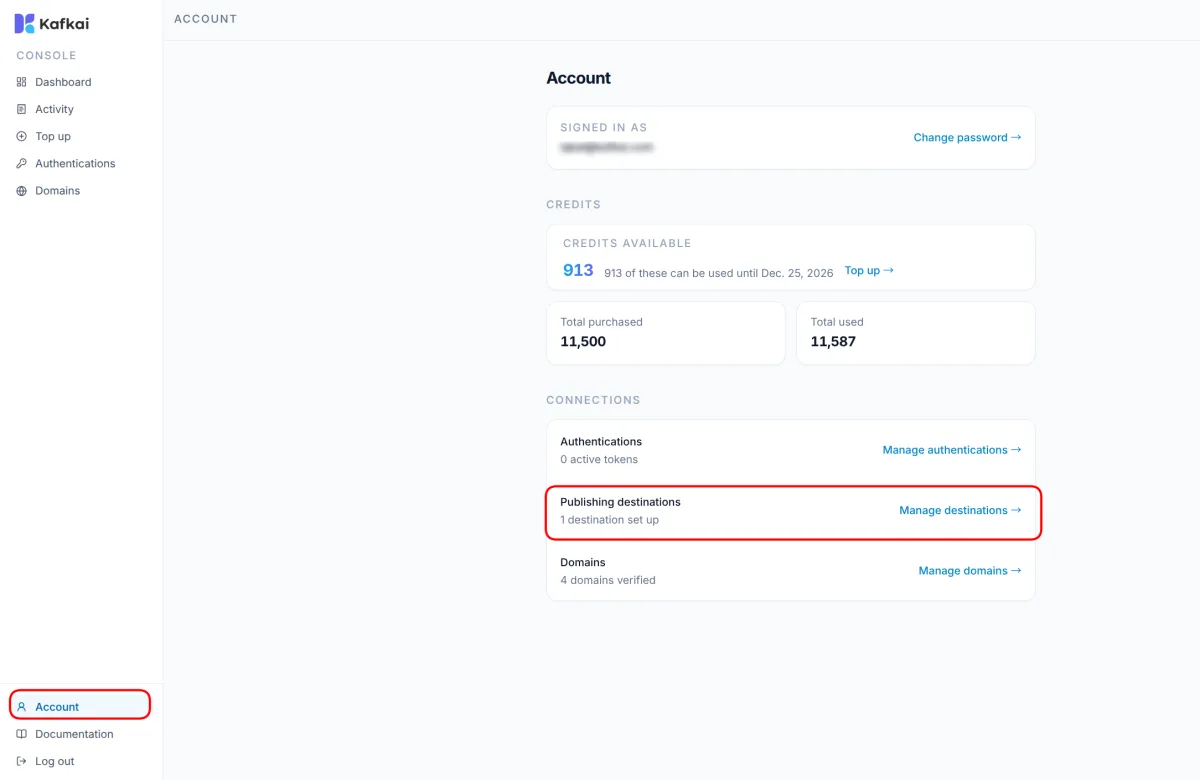
In your Kafkai account, choose Account. In the Connections section, choose Manage destinations on the Publishing destinations row. You can also open the Publishing Destinations page directly.
2. Add a destination
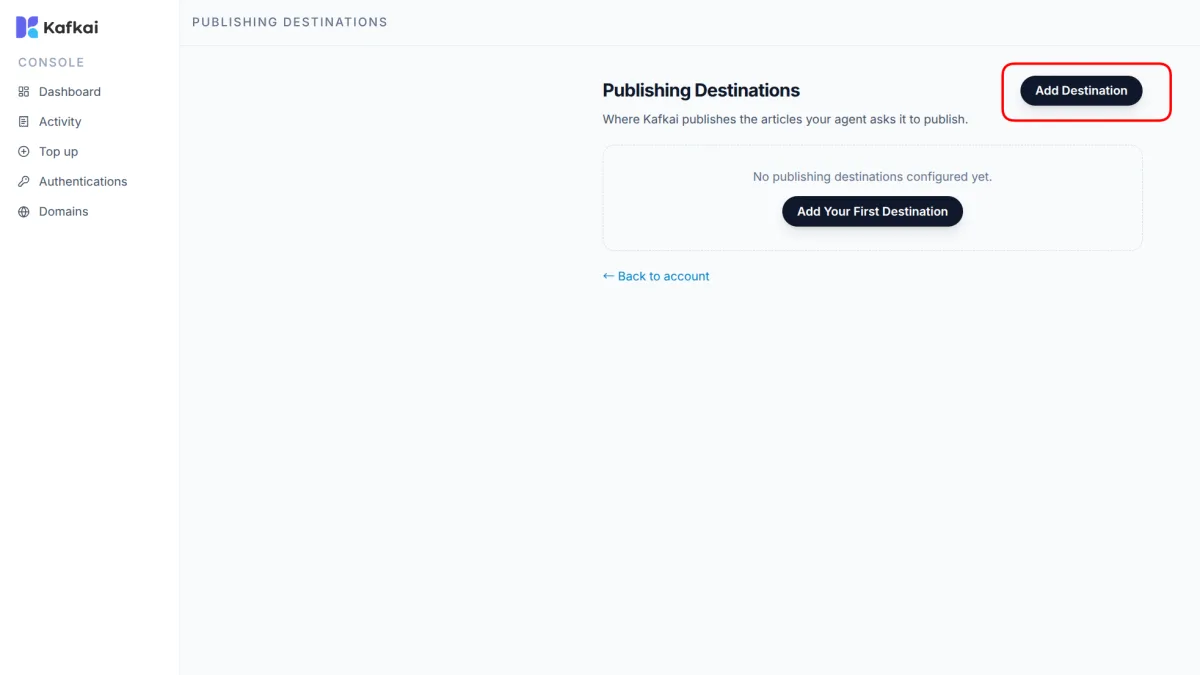
Choose Add Destination.
3. Enter the endpoint details
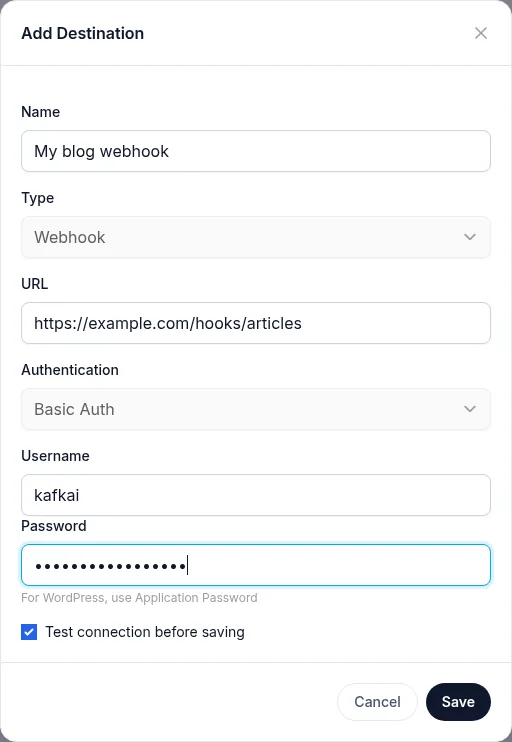
Fill in the form:
| Field | What to enter |
|---|---|
| Name | A label for the destination, such as My blog webhook. Your agent sees this name when it lists the destinations. |
| Type | Webhook |
| URL | The address of your endpoint, such as https://example.com/hooks/articles. |
| Authentication | Basic Auth |
| Username | The username that your endpoint expects. |
| Password | The password that your endpoint expects. |
Keep Test connection before saving selected, and choose Save.
Authentication has one choice, Basic Auth, because it is the
only method Kafkai sends. This form requires a username and a password.
To reach an endpoint that needs no login, create the destination
without credentials through
kafkai_add_publishing_destination; Kafkai then sends no
Authorization header.
Kafkai stores the username and the password encrypted. Kafkai never shows them again, and never returns them to your agent.
Enter these details on this page, not in a chat with your agent. That way, the password never appears in a conversation.
4. Check that the destination is active
When the test passes, Kafkai saves the destination. The list shows it with the Active label, the time of the last test, and a check mark.
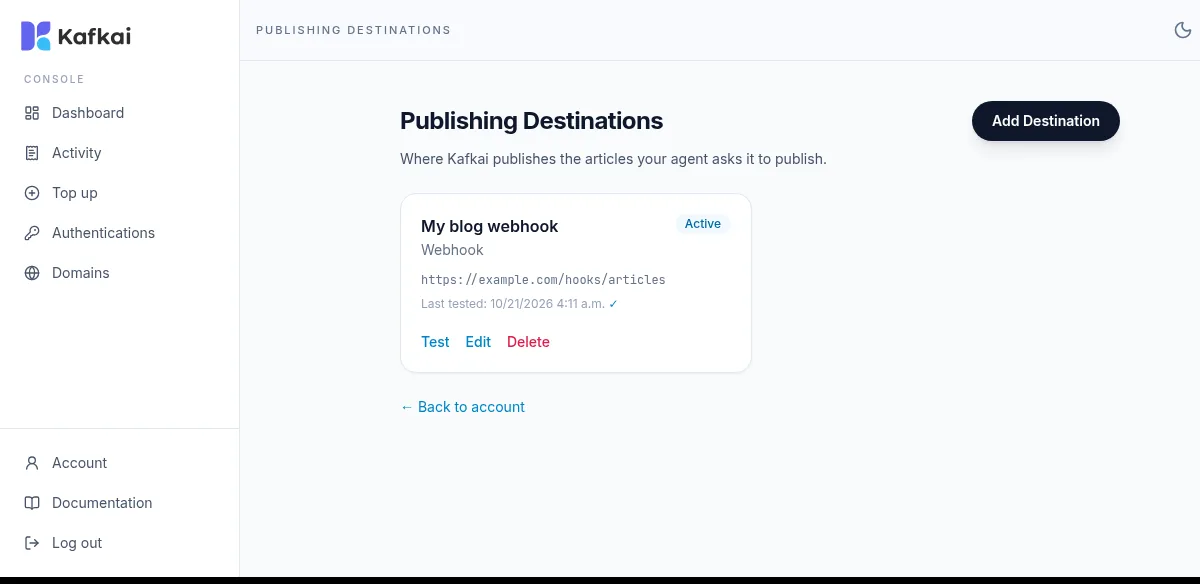
To run the test again at any time, choose Test.
The test confirms that Kafkai can reach the endpoint and that the credentials are right. It does not publish an article, so a test that passes is not a guarantee that publishing works. To confirm the whole connection, publish one draft.
How the test works
Kafkai sends a GET to the endpoint first. A 200 or 201 answer
passes. A 400 answer passes too, because it means the endpoint is
reachable and only objects to the payload. If the endpoint refuses the
GET with a 405, Kafkai sends a POST with the body
{"test": true} instead. The test passes when that answer is 200,
201, 202 or 400.
An endpoint that answers 404 to a GET fails the test with
Endpoint not found, even when it accepts the article itself. If your
endpoint only serves POST, answer the GET with 405.
Publish a first draft
Ask your agent: "Write a short test article and publish it to my webhook as a draft with Kafkai."
The agent calls kafkai_list_publishing_destinations to find the
destination, then kafkai_publish_article to send the text. Both are
free. The agent returns the ID that your endpoint gave, and the URL
when the endpoint returned one.
For the arguments of the publishing tools, see Publishing in the tool reference.
Update an existing post
Ask your agent to update the article, and to pass the external_id
that the first publish returned. Kafkai sends the same request to the
same URL with external_id in the body, so your endpoint updates that
post instead of creating a second one.
Keep the external_id of each language version separately. An article
in two languages is two posts, each with its own ID.
If the connection test fails
The form shows Connection test failed: followed by the reason.
| Reason | What to check |
|---|---|
Invalid credentials |
The username or the password is wrong. Check what your endpoint expects. |
Access forbidden |
A firewall or a proxy blocks the request. Allow access to the endpoint. |
Endpoint not found - please check the webhook URL |
The URL is wrong, or the endpoint answers 404 to a GET. If the endpoint only serves POST, answer the GET with 405. |
Webhook returned HTTP 500 |
The endpoint answered with an error. Check its own logs. |
Cannot connect to webhook |
The URL has a typing error, or the endpoint is not reachable from the internet. |
Connection timeout |
The endpoint did not answer in time. Try again. |
If the username and the password are right and the reason is still
Invalid credentials, the server may remove the login details from the
request before your endpoint reads them. Ask your hosting provider
whether the server passes the Authorization header through.
If the test passes but publishing fails
kafkai_publish_article returns the reason that your endpoint gave.
- The endpoint answered with an error status. Kafkai shows the
errorormessagefield of a JSON error body. When the body is not JSON, Kafkai reports the status code instead. - The endpoint answered with a success status and a body that is not JSON. A success status must come with a JSON body. An HTML body, another content type, or a body that does not parse as JSON fails the call, and Kafkai reports the first part of the body.
- The endpoint answered with no ID. A success status with a JSON
body that has neither
idnorexternal_idfails the call. The endpoint must return the ID of the post it created. - The request timed out. Kafkai waits 30 seconds for the answer and does not retry. A timeout or an error response fails the call.
For other errors, see Troubleshooting.
Remove the access
To stop Kafkai from publishing to the endpoint, remove the destination: choose Delete on it in the Publishing Destinations page. Articles that Kafkai already published stay where they are.
To keep the destination but pause publishing for a while, remove the
credentials on your endpoint instead. Kafkai then calls it without an
Authorization header, and your endpoint decides what to do with that.