

Documentation » Connect Google Search Console
Connect Google Search Console
Give Kafkai read access to your Google Search Console property, so your AI agent can read your actual search queries, clicks, impressions, and positions through Kafkai. All you do is add one email address — the Kafkai reader address — as a user of the property. You share no password, and Kafkai cannot change anything in Search Console.
Before you begin
- You have a Kafkai project for the site.
- You are an Owner of the Search Console property. Only an owner can add users.
- The property covers the project's domain:
- A Domain property (
example.com) covers the domain and every subdomain, so it also works for a project onblog.example.com. - A URL-prefix property (
https://www.example.com/) works only for a project on that exact host. - A URL-prefix property with a folder (
https://example.com/blog/) matches no project. It reports on that folder only.
- A Domain property (
1. Verify the domain in Kafkai
Open the Domains page in your Kafkai account.
Add the TXT record shown there to the domain's DNS, then choose
Check. If you cannot edit the domain's DNS — the site is on a
hosted platform, say — add the meta tag shown on the same page to your
site's <head> instead. You can also ask your agent: "Verify my domain
in Kafkai." Verification is free.
Until the domain is verified, Kafkai returns nothing for it — not even whether a Search Console property exists. For more on this, see Domain verification in the tool reference.
2. Copy the Kafkai reader address
On the Domains page, copy the Kafkai reader address. The address is the same for every domain and every project. The screenshots on this page hide most of the address, so copy it from your account rather than typing it from an image.
3. Open the user settings of the property
In Google Search Console, select the property. In the menu, choose Settings > Users and permissions.
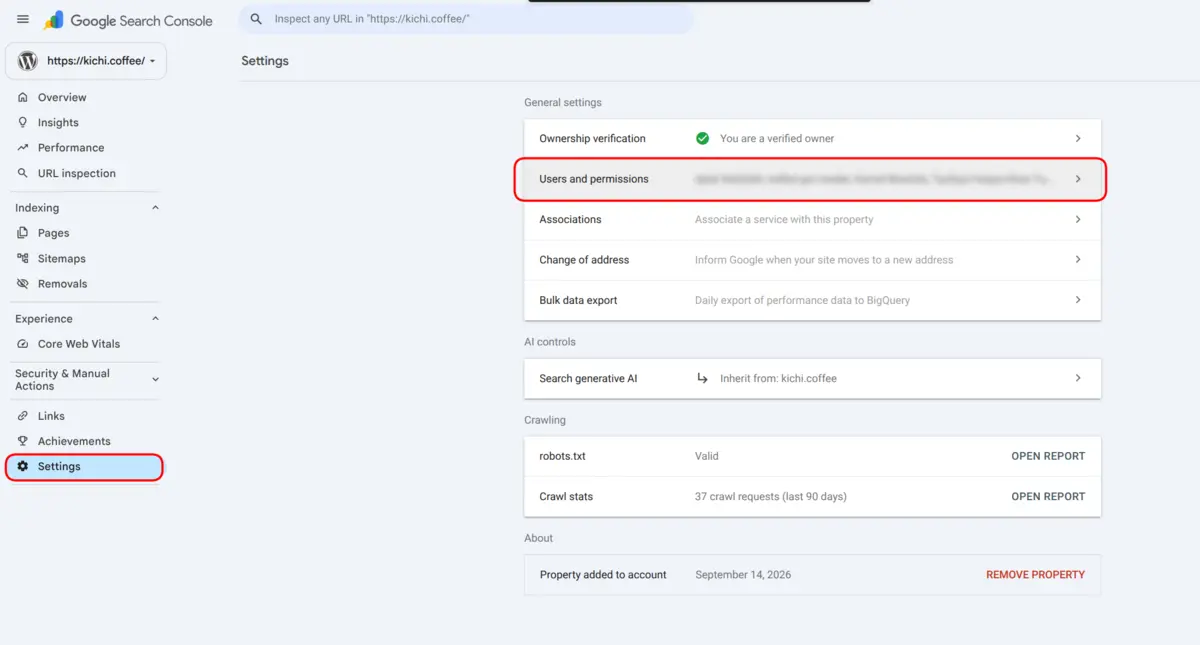
4. Add the reader address with the Restricted permission
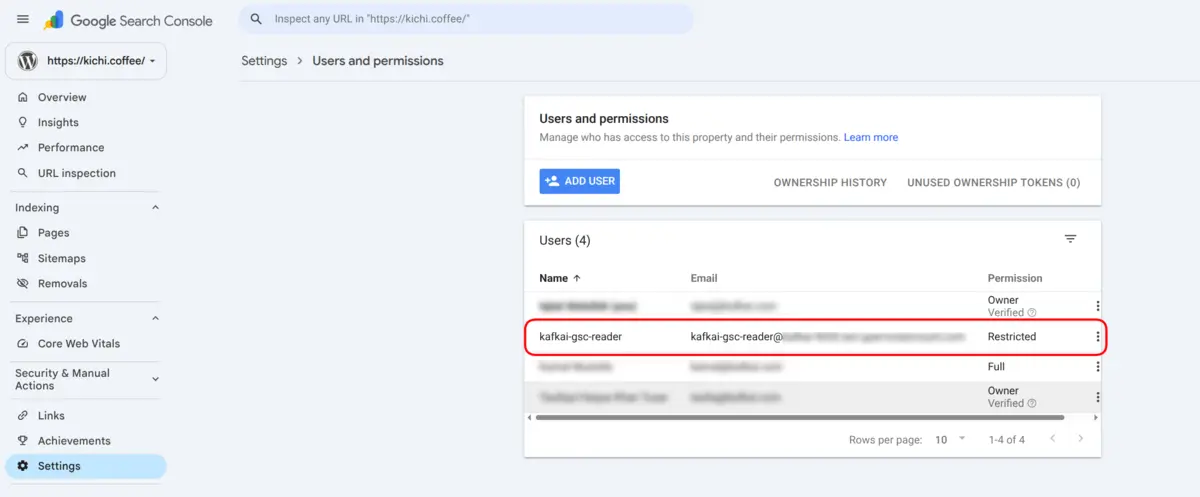
Choose Add user. Paste the Kafkai reader address into Email address, set Permission to Restricted, and choose Add.
Restricted is the lowest permission level in Search Console. It lets Kafkai view the data and nothing else. Once you add the address, the user list shows it with the Restricted permission:
5. Fetch the data
Kafkai does not watch your Search Console account. It looks for the
property only when you ask for the data. Ask your agent: "Update the
Search Console data for my project in Kafkai." The agent calls
kafkai_update_search_console. This call is free.
Kafkai finds the property and loads 16 months of history. This first fetch takes several minutes.
When you need newer data later, ask your agent the same thing again.
Kafkai allows one fetch per day, because Google publishes Search
Console data once a day. A research run (kafkai_update_keywords) also
refreshes the data and counts as that day's fetch, but a run uses
credits, so you do not need one for Search Console alone.
Check the connection
Ask your agent: "Is Search Console connected for my Kafkai project?"
The agent reads search_console.status from
kafkai_get_project_summary:
| Status | Meaning |
|---|---|
not_connected |
A step is missing. next_step_suggestion names it. |
syncing |
Kafkai found the property and is loading the history. |
ready |
The data is available. |
When the status is ready, you can ask questions like "Which queries
lost clicks in the last 28 days?" For the two tools that read this
data, see Search Console in the tool
reference.
If the status stays not_connected
- The domain is not verified. Open the Domains page and choose Check. If the TXT record was removed, access stops until you add the record again.
- The address has a typing error. Remove the user in Search Console and paste the address again from the Domains page.
Also check that your agent has called kafkai_update_search_console
since you added the address, and that the property type covers the
project's host. After a call that finds no property, Kafkai waits one
minute before it looks again, so wait a minute between two calls.
Remove the access
To stop Kafkai from reading the property, open Settings > Users and permissions in Search Console, open the menu on the row of the reader address, and choose Remove access. From that moment, Kafkai can no longer read the property.