

Documentation » Connect Google Analytics
Connect Google Analytics
Give Kafkai read access to your Google Analytics 4 (GA4) property, so that your AI agent can read your traffic, pages, channels and key events through Kafkai. You add one email address — the Kafkai reader address — as a user of the property. You share no password, and Kafkai cannot change anything in Google Analytics.
The reader address is the same one that you use for Google Search Console.
Before you begin
- You have a Kafkai project for the site.
- You have the Administrator role on the GA4 property. Only an administrator can add users.
- The property has a web data stream whose URL is the project's domain.
Kafkai matches a project to a property by that URL, and a project on
a subdomain (
blog.example.com) also matches a stream on its registered domain (example.com).
To check the stream URL, open Admin > Data streams in Google Analytics.
1. Verify the domain in Kafkai
Open the Domains page in your Kafkai account.
Add the TXT record shown on the page to the domain's DNS, then choose
Check. If you cannot edit the domain's DNS — the site is on a
hosted platform, say — add the meta tag shown on the same page to your
site's <head> instead. You can also ask your agent: "Verify my domain
in Kafkai." Verification is free. If you verified the domain for Search
Console, this step is done.
Until the domain is verified, Kafkai returns nothing for it — not even whether a GA4 property exists. For more information, see Domain verification in the tool reference.
2. Copy the Kafkai reader address
On the Domains page, copy the Kafkai reader address. The screenshots on this page hide most of the address, so copy it from your account instead of typing it from an image.
3. Open the access settings of the property
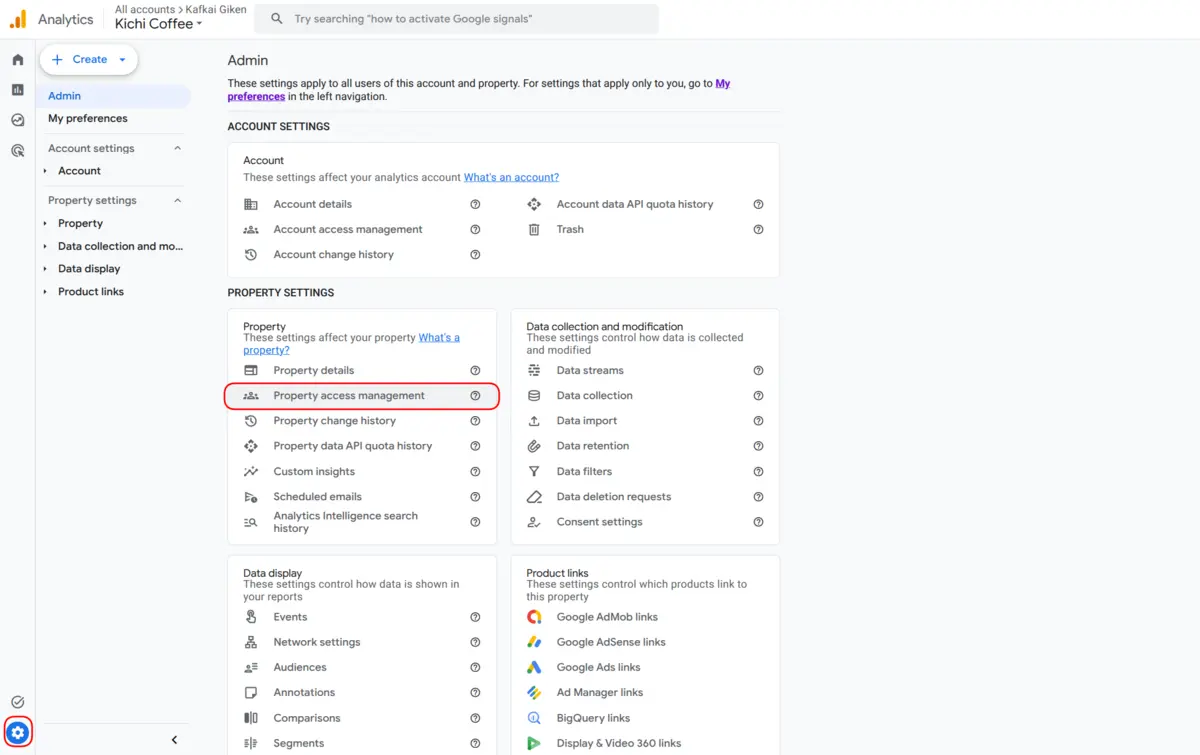
In Google Analytics, select the property. Choose Admin (the gear icon), then Property access management in the Property section — not Account access management, which opens every property in the account.
4. Add the reader address with the Viewer role
Choose +, then choose Add users. Paste the Kafkai reader address into Email addresses, select the Viewer role, and choose Add. You can clear Notify new users by email; nobody reads email sent to the reader address.
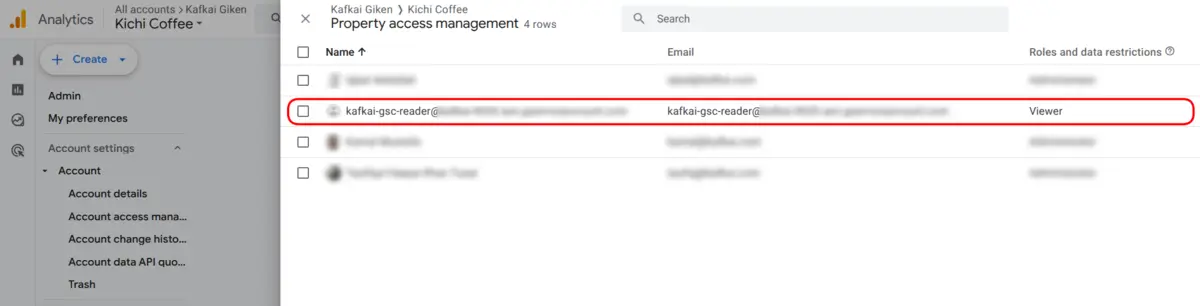
Viewer is the lowest role in Google Analytics. It lets Kafkai view reports and nothing else. After you add the address, the user list shows it with the Viewer role:
5. Ask your agent for the data
No research run is needed. Kafkai reads Google Analytics live and finds
the property on the next call. Ask your agent: "Show my Google
Analytics traffic for the last 30 days from Kafkai." The agent calls
kafkai_get_ga_analytics_data.
If your agent asked for the data before you added the address, Kafkai can take up to 10 minutes to look for the property again.
Check the connection
Every response carries a ga_analytics.status:
| Status | Meaning |
|---|---|
not_verified |
The domain is not verified. Complete step 1. |
not_connected |
Kafkai sees no property for the domain. Check steps 3 and 4 and the data stream URL. |
ambiguous |
More than one property has a data stream for the domain. Contact Kafkai support with the ID of the property to use. |
unavailable |
This call got no answer from Google Analytics. Wait a minute and try again. |
ready |
The data is available. |
For the reports and arguments of kafkai_get_ga_analytics_data, see
the Tool Reference.
Read the numbers
- Google Analytics can take 24 to 48 hours to process data, so the most recent days can be incomplete. By default the tool reads the 30 days that end yesterday.
- Google Analytics hides rows with very small counts to protect
privacy. When that happens, the response includes
subject_to_thresholding. - The numbers do not match Search Console. Google Analytics counts sessions from every source. Search Console counts clicks from Google Search.
Remove the access
To stop Kafkai from reading the property, open Admin > Property access management in Google Analytics, open the menu on the row of the reader address, and choose Remove access. Kafkai can no longer read the property from that moment.