

Help Articles
Does the keywords data for the Projects get updated regularly?
Ranking Performance Feature
Kafkai Market Intelligence FAQ
Market Position Tracker FAQ
Post-Generation Article Template Basics
Questions About Deleting Competitors From Projects
📊 How to select competitor websites
🚮 Deleting competitors from your Project
How to create Projects
How do I delete and recreate my Project?
Does Kafkai guarantee improved search rankings?
😢 How do I cancel my subscription?
📝 How to Fill Out Your Kafkai Project Details Form
Can you issue me an invoice or receipts for my purchases?
How do I delete all my data from Kafkai?
📌 What are keyword tags in Kafkai?
What is Kafkai, and how does it differ from other SEO tools like SEMrush and Ahrefs?
Can we point to social media pages (like Facebook or Instagram) instead of actual websites for our site or our competitors?
Can I use Kafkai to generate content in multiple languages?
Does Kafkai support website integration, or do I need to manually upload content?
What Is A "Project"
Is content generated by Kafkai considered reselling?
Can I use Kafkai’s generated articles “as is”?
How To Generate Articles
Who owns the copyright to the generated contents on Kafkai?
How Is Kafkai Different From Competitors?
How to Upgrade from Free Trial to a Paid Plan
What is the technology behind Kafkai? How does it work?
How To Generate Articles
To generate articles, you will start with doing keyword analysis first. After clicking the button Generate Content with This Keyword you will be brought to article generation page as in the screenshot below.
Step 1: Select Language
- Default Language Based on Region: Kafkai automatically selects a language based on your project's region (e.g., English for projects in the United States).
- Change Language if Needed: If you need the article in a different language, use the dropdown menu next to "Select Language" to pick the desired language.
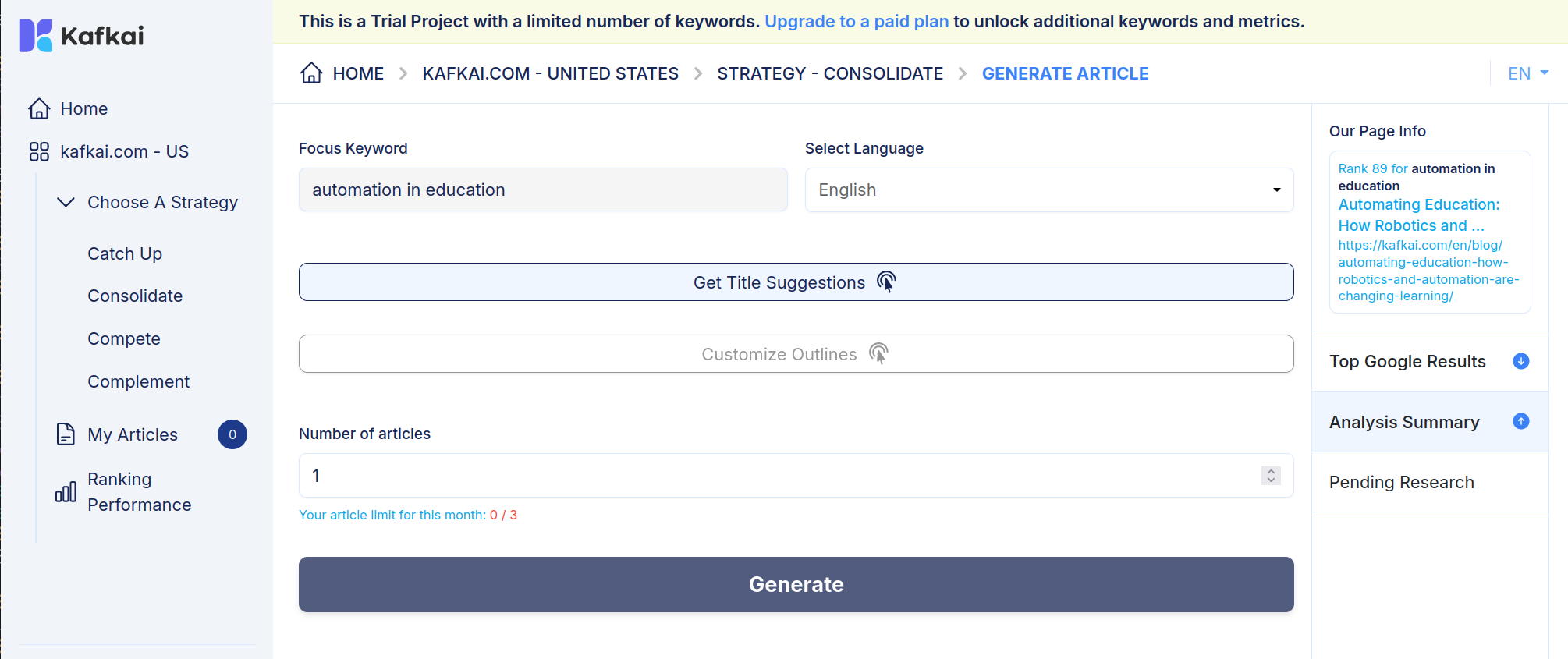
Step 2: Generate Titles
- Click "Get Title Suggestions": After confirming the language, click the "Get Title Suggestions" button. Kafkai will generate several relevant title ideas based on your keyword.
Step 3: Choose a Title
- Browse the Title Options: Review the list of suggested titles and select one that best matches the focus of your article.
- Confirm Selection: Click on the title you want. This title will guide the structure and content of the article.
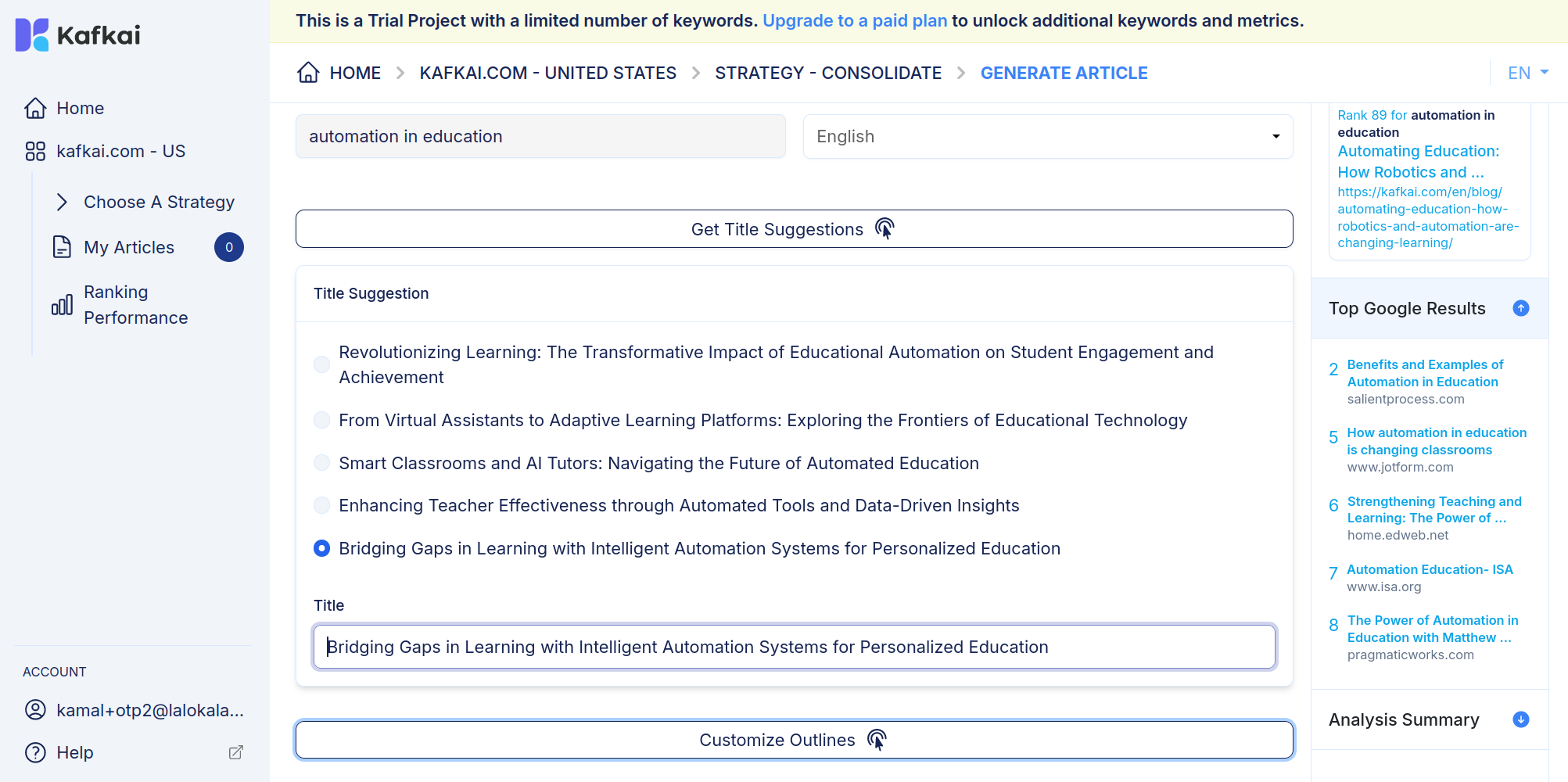
Step 4: Generate an Outline
- Customize Outlines: After selecting a title, click "Customize Outlines." Kafkai will create an outline that includes key sections and subtopics related to your chosen title.
Step 5: Customize the Outline (if needed)
- Edit the Outline: You can adjust the outline to better fit your vision. Add, remove, or modify sections as needed to create a personalized structure.
Step 6: Generate the Article
- Select Number of Articles: In the "Number of articles" field, specify how many articles you want to generate.
- Click "Generate": Once you’re satisfied with the outline, click "Generate" to have Kafkai produce the article based on your selections.
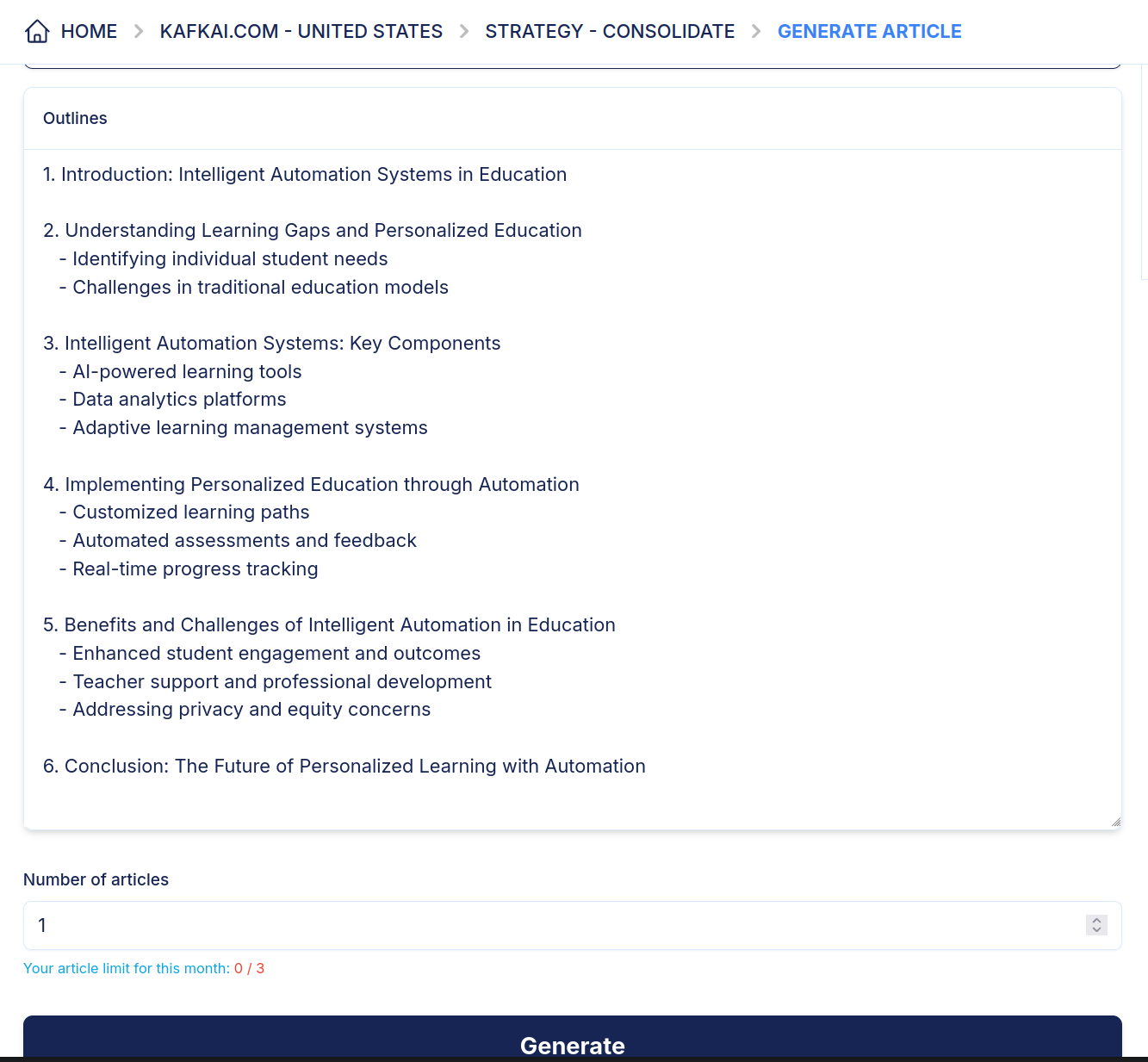
After clicking the Generate button you will be redirected to My Articles page where your articles will be shown once it's done being generated.
Last updated -