# Connect Google Analytics
Give Kafkai read access to your Google Analytics 4 (GA4) property, so
that your AI agent can read your traffic, pages, channels and key
events through Kafkai. You add one email address — the Kafkai reader
address — as a user of the property. You share no password, and Kafkai
cannot change anything in Google Analytics.
The reader address is the same one that you use for
[Google Search Console](https://kafkai.com/en/docs/google-search-console/).
## Before you begin
- You have a Kafkai project for the site.
- You have the **Administrator** role on the GA4 property. Only an
administrator can add users.
- The property has a web data stream whose URL is the project's domain.
Kafkai matches a project to a property by that URL, and a project on
a subdomain (`blog.example.com`) also matches a stream on its
registered domain (`example.com`).
To check the stream URL, open **Admin** > **Data streams** in Google
Analytics.
## 1. Verify the domain in Kafkai
Open the [Domains page](https://kafkai.com/en/accounts/domains/) in your Kafkai account.
Add the TXT record shown on the page to the domain's DNS, then choose
**Check**. If you cannot edit the domain's DNS — the site is on a
hosted platform, say — add the meta tag shown on the same page to your
site's `` instead. You can also ask your agent: "Verify my domain
in Kafkai." Verification is free. If you verified the domain for Search
Console, this step is done.
Until the domain is verified, Kafkai returns nothing for it — not even
whether a GA4 property exists. For more information, see
[Domain verification](https://kafkai.com/en/docs/tools/#domain-verification) in the tool
reference.
## 2. Copy the Kafkai reader address
On the [Domains page](https://kafkai.com/en/accounts/domains/#connect-search-console),
copy the Kafkai reader address. The screenshots on this page hide most
of the address, so copy it from your account instead of typing it from
an image.
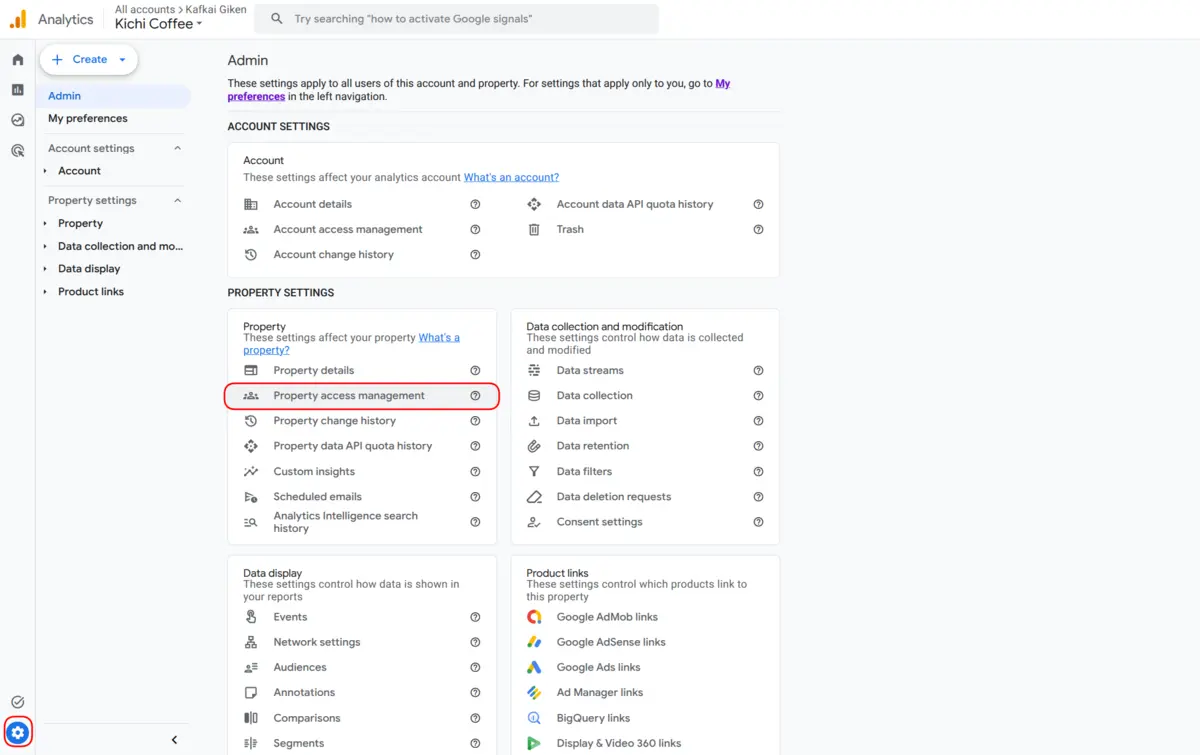
## 3. Open the access settings of the property
In [Google Analytics](https://analytics.google.com/), select the
property. Choose **Admin** (the gear icon), then **Property access
management** in the **Property** section — not **Account access
management**, which opens every property in the account.
 ## 4. Add the reader address with the Viewer role
Choose **+**, then choose **Add users**. Paste the Kafkai reader
address into **Email addresses**, select the **Viewer** role, and
choose **Add**. You can clear **Notify new users by email**; nobody
reads email sent to the reader address.
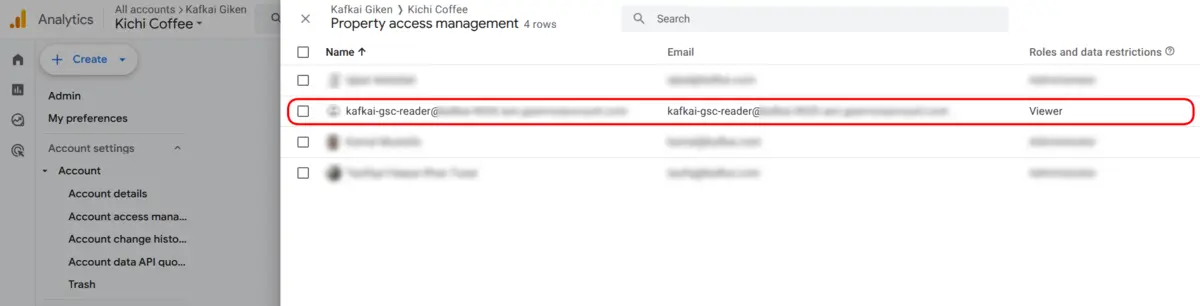
**Viewer** is the lowest role in Google Analytics. It lets Kafkai view
reports and nothing else. After you add the address, the user list
shows it with the **Viewer** role:
 ## 5. Ask your agent for the data
No research run is needed. Kafkai reads Google Analytics live and finds
the property on the next call. Ask your agent: "Show my Google
Analytics traffic for the last 30 days from Kafkai." The agent calls
`kafkai_get_ga_analytics_data`.
If your agent asked for the data before you added the address, Kafkai
can take up to 10 minutes to look for the property again.
## Check the connection
Every response carries a `ga_analytics.status`:
| Status | Meaning |
| --- | --- |
| `not_verified` | The domain is not verified. Complete step 1. |
| `not_connected` | Kafkai sees no property for the domain. Check steps 3 and 4 and the data stream URL. |
| `ambiguous` | More than one property has a data stream for the domain. Contact [Kafkai support](https://kafkai.com/en/contact/) with the ID of the property to use. |
| `unavailable` | This call got no answer from Google Analytics. Wait a minute and try again. |
| `ready` | The data is available. |
For the reports and arguments of `kafkai_get_ga_analytics_data`, see
the [Tool Reference](https://kafkai.com/en/docs/tools/).
## Read the numbers
- Google Analytics can take 24 to 48 hours to process data, so the most
recent days can be incomplete. By default the tool reads the 30 days
that end yesterday.
- Google Analytics hides rows with very small counts to protect
privacy. When that happens, the response includes
`subject_to_thresholding`.
- The numbers do not match Search Console. Google Analytics counts
sessions from every source. Search Console counts clicks from Google
Search.
## Remove the access
To stop Kafkai from reading the property, open **Admin** > **Property
access management** in Google Analytics, open the menu on the row of
the reader address, and choose **Remove access**. Kafkai can no longer
read the property from that moment.